
PhotoGrid: Video Collage Maker
PhotoGrid CorporationPhotography
4.7604.00 Reviews
- Version
- 9.25
- Installs
- 10.00M
- Age Rating
- Everyone
Screenshots
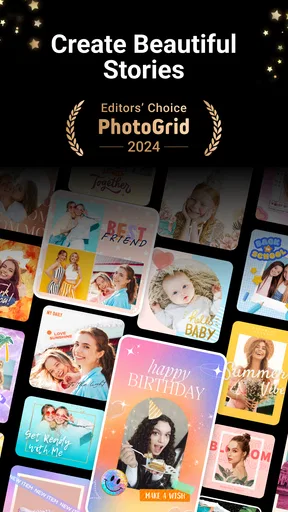


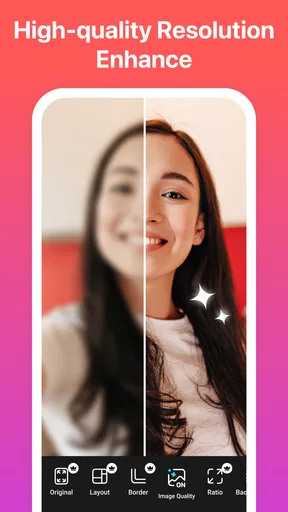

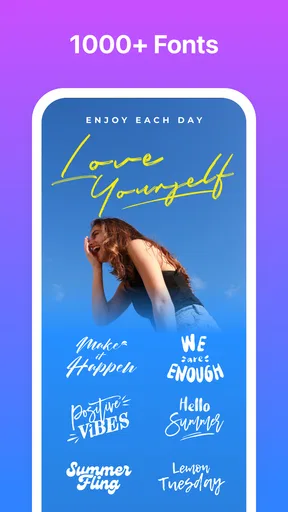

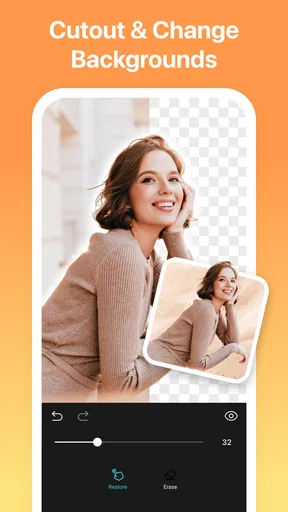
Our Review of PhotoGrid: Video Collage Maker
 Analysis by Appyee
I tend to reach for a collage app when a handful of photos tell a better story together than they do on their own. PhotoGrid: Video Collage Maker is built for that kind of quick, visual project: arranging pictures, combining clips, and giving the result a more finished look without opening a full desktop editor. It is a photography app from PhotoGrid Corporation, and its focus is clear from the first session: make it easy to turn a camera roll into something shareable.
That focus is useful, but it also sets expectations. I see PhotoGrid as a creative toolkit for casual edits and social posts, not a replacement for a dedicated video-editing suite. The app is free to start, has optional in-app purchases, and is rated for Everyone. Its average rating is 4.6 from around 88,000 ratings, with more than 10 million installs, so it is clearly a familiar choice for people who want collage-making close at hand.
What a quick edit feels like
For a small project, the main appeal is being able to move from choosing images to arranging them without first learning a complicated editing workflow. That matters when I want to make a birthday grid, a before-and-after pair, or a recap of an afternoon out and would rather spend my time choosing the right pictures than hunting through advanced controls.
PhotoGrid’s current version is 9.22, and it was released on March 3, 2024. The app supports devices running Android 9 or later. Those details help set the practical boundaries: it is aimed at phones that can run a modern editing app, while older devices may not meet the minimum requirement. A free download makes it easy to try, though paid items range from $0.99 to $99.99 each, so I would check any purchase prompt carefully before tapping through.
When projects get more demanding
A simple photo layout is a lighter job than combining several video clips, adding text, and adjusting the frame for a particular destination. I would expect the latter kind of session to put more pressure on a phone, especially if the source clips are large or the device is already busy. I would keep the first video collage modest, save or export a draft when the app offers that option, and avoid leaving several demanding apps running at the same time.
That is practical editing hygiene rather than a promise about how every phone will behave. Performance can depend on the device, the media being used, and the complexity of the composition. If a project starts feeling slow, simplifying it—fewer clips, less decoration, or a smaller edit—can be a more useful first move than repeatedly changing settings at random.
Where it fits among editing apps
Compared with a basic gallery editor, PhotoGrid is better suited to arranging several images into a designed composition and mixing photos with video. Compared with a full video editor, it is less about building a long, precisely timed sequence and more about producing a compact collage. That distinction is why I would use it for a group-photo layout or a short visual recap, but choose a specialist editor if I needed detailed control over a longer project.
The all-in-one approach is convenient because I can handle several kinds of visual edits in one place. The trade-off is that a broad set of creative tools can feel busier than a single-purpose crop or filter app. If all I need is to straighten one photo, my phone’s built-in editor is likely quicker. If I want a collage with a deliberate arrangement, PhotoGrid has a clearer reason to be open.
Getting Started with PhotoGrid
First things first, setting up PhotoGrid is a breeze. After downloading it from the app store, you’re greeted with a clean, user-friendly interface. No overwhelming menus or unnecessary fluff. Just pure, intuitive design that lets you dive straight into the fun part—creating!
The app offers a variety of templates that are perfect for both photos and videos. Whether you’re looking to make a simple grid or a complex video collage, there’s something for everyone. And the best part? You don’t need to be a tech wizard to figure it out. Even if you’re like me and sometimes struggle with technology, this app makes you look like a pro.
Features That Make You Go Wow
What really sets PhotoGrid apart are its diverse features. Let’s talk about the collage maker first. There are over 300 different layouts you can choose from. Yes, you heard me right—300! From simple grids to stylish templates, you’ve got endless options.
Then, there’s the video collage feature. This part of the app is a real gem for when you want to combine multiple clips into one seamless video. You can adjust the aspect ratio, add music, and even slap on some snazzy text. It’s like having a mini video production studio right in your pocket.
For a family group chat, I would use those tools to make a small recap rather than try to squeeze every clip from the day into one edit. Choosing a few moments with different viewpoints often tells the story more clearly than filling every space. A useful trick is to decide on the final shape first: a square layout suits a compact grid, while a taller or wider frame can make more sense for the way you plan to share it. That choice can save the frustration of arranging everything and then discovering the composition feels cramped.
Video collages also involve a creative trade-off: several moving images compete for attention. I would keep text short, place it where it does not cover the important action, and use music only when it helps the mood rather than adding noise. PhotoGrid’s mix of clips, aspect-ratio adjustment, music, and text gives a casual editor room to make those choices, but it is not the same as fine-grained control over every moment in a long timeline.
Oh, and let’s not forget about the stickers and filters. Who doesn’t love a good filter to spice things up? PhotoGrid offers a wide range of filters that can make your photos pop or give them that vintage feel. The stickers are also ridiculously fun to play around with, adding that extra flair to your creations.
Small choices that make a collage work
Decorative options are most helpful when they support the pictures instead of competing with them. I would pick one visual direction—such as a consistent filter or a small amount of text—and apply it across the collage. Mixing several strong effects can make individual shots look lively but leave the finished piece feeling scattered. For a keepsake or a post that friends need to read quickly, clear images and restrained decoration usually age better than a crowded design.
The app’s AI remover tool is another reason it may appeal to people who want to tidy an image before sharing it. I would treat removal as a finishing touch for an incidental distraction in the background, not as a guaranteed way to rebuild a complicated scene perfectly. If the object overlaps a face, patterned clothing, or an important edge, inspect the result closely; a small flaw can be more noticeable than the original distraction. Keeping an untouched copy of a photo before experimenting is sensible whenever the original matters.
Everyday projects, and who should choose something else
Imagine getting home after a weekend walk with several photos of the same view, a picture of the people who came along, and a short clip from the best moment. I would use PhotoGrid to make a compact recap: select only the clearest images, place the clip where it adds movement, and keep the caption brief. That turns a scattered camera-roll selection into one easy-to-share piece without requiring a full editing session.
That workflow is especially well suited to casual creators, families, students making a visual recap, or anyone who often posts a few pictures together. It is also handy when a single image needs a little cleanup before it joins a collage. People who want exact color grading, detailed audio mixing, precise clip timing, or a polished long-form video should look at a dedicated editor instead. Likewise, if you only crop or brighten one photo once in a while, a built-in phone tool may be simpler than opening a separate app.
One practical question is whether it costs anything to try: the app is free to download, but optional purchases are available, with individual items priced from $0.99 to $99.99. I would explore the basic workflow first and pay attention to purchase screens, especially if a feature prompts an upgrade. That makes it easier to decide whether a paid option solves a real need rather than buying something just because it appears during an edit.
Usability and Performance
In terms of performance, PhotoGrid runs like a dream. I’ve tried it on both my Android and my friend’s iPhone, and it’s smooth sailing on both platforms. The app doesn’t lag, and the transitions are fluid, which is essential when you’re trying to put together something creative without frustration.
For reliability, I would judge it by whether it handles the whole path from selecting media to finishing an edit, not just by how quickly a template opens. A collage with still photos is a sensible place to begin if you are learning the controls or using a phone with limited headroom. Video projects can be heavier, so I would avoid starting a large edit when the battery is nearly empty or when I have not kept the original clips somewhere safe. That is a cautious workflow, not a claim that the app will fail; it simply reduces the cost of a hiccup in any mobile editing session.
Recovery matters too. Before investing time in a complicated composition, I would check how the current session behaves when I leave the editor and return, and finish a small test project first. If you are preparing something important, keep the original photos and clips until you have checked the exported result. This habit is useful with any mobile creative app, particularly when a project combines several kinds of media.
What’s also great is the app’s continually updated content. New layouts, stickers, and filters are added regularly, keeping the app fresh and exciting. It’s like they know exactly what users are craving, and they deliver it perfectly.
Device expectations and a practical verdict
PhotoGrid is available for Android devices running version 9 or later, so the first compatibility check is straightforward: an older Android phone below that requirement will need another option. Even on a supported phone, available storage and the size of the media you are editing can affect how comfortable a demanding project feels. I would free some space before making a video collage and work with selected clips instead of loading every candidate at once. That keeps the task manageable and makes choosing the strongest material easier.
My performance verdict is that PhotoGrid makes the most sense for short, visual projects where convenience matters more than meticulous control. For a quick photo grid or a brief mixed-media recap, its templates and editing tools give me a practical starting point. For larger, more exacting work, I would move to a specialist editor and use PhotoGrid for the faster collage-shaped jobs it handles best.
Final Thoughts
All things considered, if you’re someone who loves to capture life’s moments and turn them into something special, PhotoGrid: Video Collage Maker is definitely worth checking out. It’s got everything you need to elevate your photos and videos, whether it’s for a professional project or just for fun.
So, next time you’re snapping pics or recording videos, give PhotoGrid a whirl. You’ll be amazed at how easy it is to create something that looks like it was done by a pro. And let’s be honest, who doesn’t love a little extra flair in their social media posts?
Verdict
Strengths of PhotoGrid: Video Collage Maker
- Intuitive interface for easy navigation.
- Wide variety of templates available.
- High-quality export options.
- Regular updates with new features.
- Supports multiple media formats.
Limitations of PhotoGrid: Video Collage Maker
- Contains in-app advertisements.
- Some features require purchase.
- Occasional crashes reported.
- Limited free music options.
- Needs more customization tools.
Similar Picks in This Category
View All
Google Photos
Google LLC4.4

Gallery
Google LLC4.2

Picsart AI Photo Editor, Video
PicsArt, Inc.3.9

B612 AI Photo&Video Editor
SNOW Corporation4.1

BeautyPlus-Selfie Photo Editor
PIXOCIAL TECHNOLOGY (SINGAPORE) PTE. LTD.4.5

Remini - AI Photo Enhancer
Bending Spoons4.1
Frequently Asked Questions
What features does PhotoGrid: Video Collage Maker offer?
PhotoGrid: Video Collage Maker is packed with features for creating beautiful photo and video collages. It includes a wide range of templates, filters, stickers, and text options to enhance your creations. Additionally, it supports a variety of aspect ratios and offers tools for photo editing, such as cropping, rotating, and adding backgrounds.
Is PhotoGrid: Video Collage Maker free to use?
PhotoGrid offers a free version with essential features, allowing users to create basic collages without any cost. However, there is a premium version available for those who want access to more advanced features, ad-free experience, and additional resources such as exclusive templates and effects.
Can I use PhotoGrid for both photos and videos?
Yes, PhotoGrid is designed to handle both photos and videos seamlessly. You can easily create collages that combine images and video clips, making it a versatile tool for social media content creation, storytelling, or simply sharing memories with friends and family.
Is PhotoGrid: Video Collage Maker user-friendly for beginners?
PhotoGrid is very user-friendly, with an intuitive interface that is easy to navigate even for beginners. It provides clear instructions and a straightforward layout, making it simple for users to start creating collages without a steep learning curve. Tutorials and tips are also available to guide users through the process.
Does PhotoGrid support social media sharing?
Absolutely! PhotoGrid is optimized for social media sharing. It allows you to export your creations in various formats and resolutions suitable for platforms like Instagram, Facebook, and TikTok. You can directly share your collages from the app to your preferred social media accounts with just a few taps.
